The product launch graphic is due in two hours. You typed the tagline into the AI image generator. It came back with “Launcch Spécial Offerr” in a font that doesn’t exist. You tried three more prompts. Each one misspelled something different. The designer is unavailable and Canva templates look exactly like Canva templates.
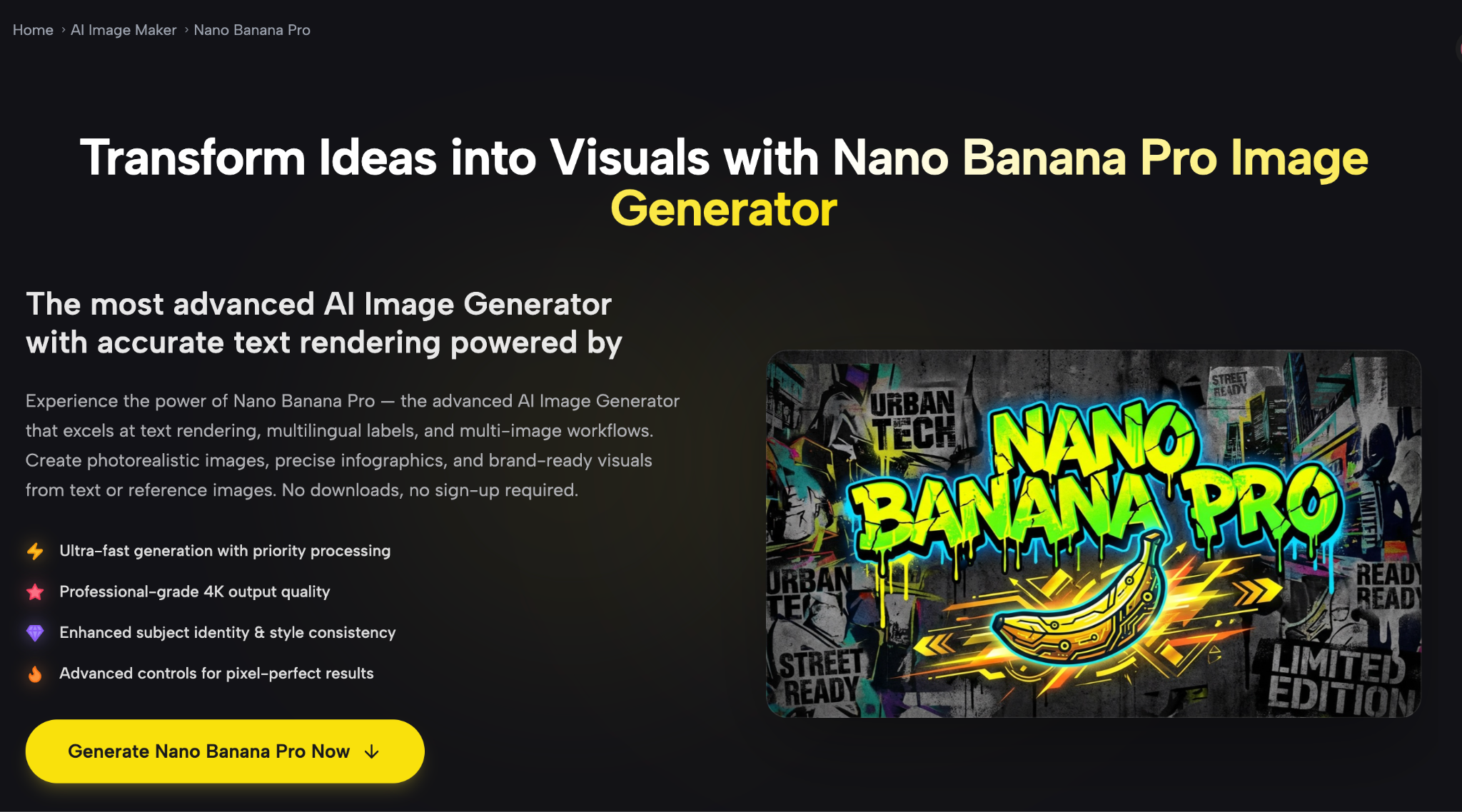
Accurate text rendering in AI-generated images has been the missing piece — and it’s now solved. Tools like Nano Banana Pro handle multilingual labels, infographic text, and brand copy inside generated images with precision — this article walks through exactly how the workflow looks.
What Nano Banana Pro Actually Solves for Content Creators
Most AI image generators produce good visuals but break down the moment text enters the frame. Here’s what that costs creators and how this tool addresses each problem:
- Misspelled or distorted text in generated images: Standard AI models hallucinate characters and garble words — Nano Banana Pro is built specifically for accurate text rendering, so taglines, labels, and copy come out legible on the first pass.
- No reference image support: Most generators work from a single prompt with no visual anchor — Nano Banana Pro accepts up to 4 reference images per prompt, so you can feed in brand assets, product photos, or style references and keep outputs on-brand.
- Resolution too low for professional use: Social graphics compressed during generation look soft on high-DPI screens — the model outputs up to 4K, covering everything from Instagram posts to print-ready files.
- Wrong aspect ratio for the placement: Cropping after generation breaks composition — multiple aspect ratios (9:16, 16:9, 1:1, 21:9 and more) are set before generation, not after.
- Signup friction before you can test anything: Most tools gate output behind an account — no sign-up is required to start generating here.
The result is a tool that handles the specific failure points that make other AI image generators frustrating for text-heavy brand content.
What Nano Banana Pro Actually Lets You Do
Text to Image with Accurate Copy Rendering
Describe the image and include the exact text you want in the frame — product labels, slogans, infographic callouts, multilingual captions. The model renders the copy accurately rather than approximating letterforms. Useful for any creator who’s lost time regenerating images just because the text came out wrong.
Image to Image with Up to 4 References
Upload existing brand assets — a logo, a product shot, a color palette reference, or a layout example — and generate new images that stay visually consistent with what you already have. The 4-reference-image limit is practically useful: you can anchor style, product, background, and copy direction simultaneously.
Multi-Resolution and Aspect Ratio Control
Choose output resolution (1K, 2K, or 4K) and aspect ratio before generating. This matters for workflow: a 4K 9:16 vertical for Reels is a different file than a 1:1 square for a feed post, and generating at the right spec from the start avoids compression and recomposition.
Batch Generation (Up to 4 Images Per Run)
Generate one to four variations of the same prompt in a single run. Useful for A/B testing visual directions, giving a client options, or quickly iterating on copy placement without running separate jobs.
Everything runs in-browser with no download required, and no account is needed to start.
How to Generate Your First Image in Under 10 Minutes
Step 1 — Write a prompt that includes your exact text as a string
Don’t describe the text — write it exactly as you want it to appear. The model reads it literally.
Step 2 — Upload reference images if you have them
Drop in your brand kit assets — logo, product photo, color reference — using the Image to Image mode. Up to 4 files. The more anchors you give it, the less the output drifts from your brand.
Step 3 — Set resolution and aspect ratio before generating
Pick the spec that matches your placement: 9:16 for Stories and Reels, 1:1 for feed posts, 16:9 for YouTube thumbnails or banners. Set it now — resizing after generation loses composition quality.
Step 4 — Generate up to 4 variants and pick the strongest
Run the batch, review, and select. If the text is right, but the layout needs work, adjust the prompt and regenerate. Text accuracy issues specifically are worth re-prompting on — be more explicit about font weight, position, and size.
FAQ
Is Nano Banana Pro free to use?
You can generate without signing up; free credits are available on login with paid plans for higher volume.
Can I use generated images for commercial brand campaigns?
Yes — outputs are yours to use commercially. Confirm current terms on the site for specifics.
How does Nano Banana Pro compare to Midjourney for text rendering?
Nano Banana Pro is built specifically for accurate in-image text; Midjourney frequently distorts copy and doesn’t support reference image workflows natively.
What languages does the text rendering support?
The model supports multilingual labels — useful for campaigns targeting non-English markets or bilingual creative.
What are the limitations?
Highly stylized or decorative fonts may not render with full accuracy; complex multi-column infographic layouts sometimes need prompt refinement across two or three passes.
Conclusion
If you’ve burned time regenerating images just to fix a misspelled tagline, Nano Banana Pro is worth a session. The text rendering accuracy alone separates it from most general-purpose image generators. Start with a simple branded banner, feed in your reference images, and see how close the first pass gets. For content teams producing high volumes of platform-specific graphics, it’s a practical place to start — and the 4K output means files are actually usable without a separate upscale step.
About Author